


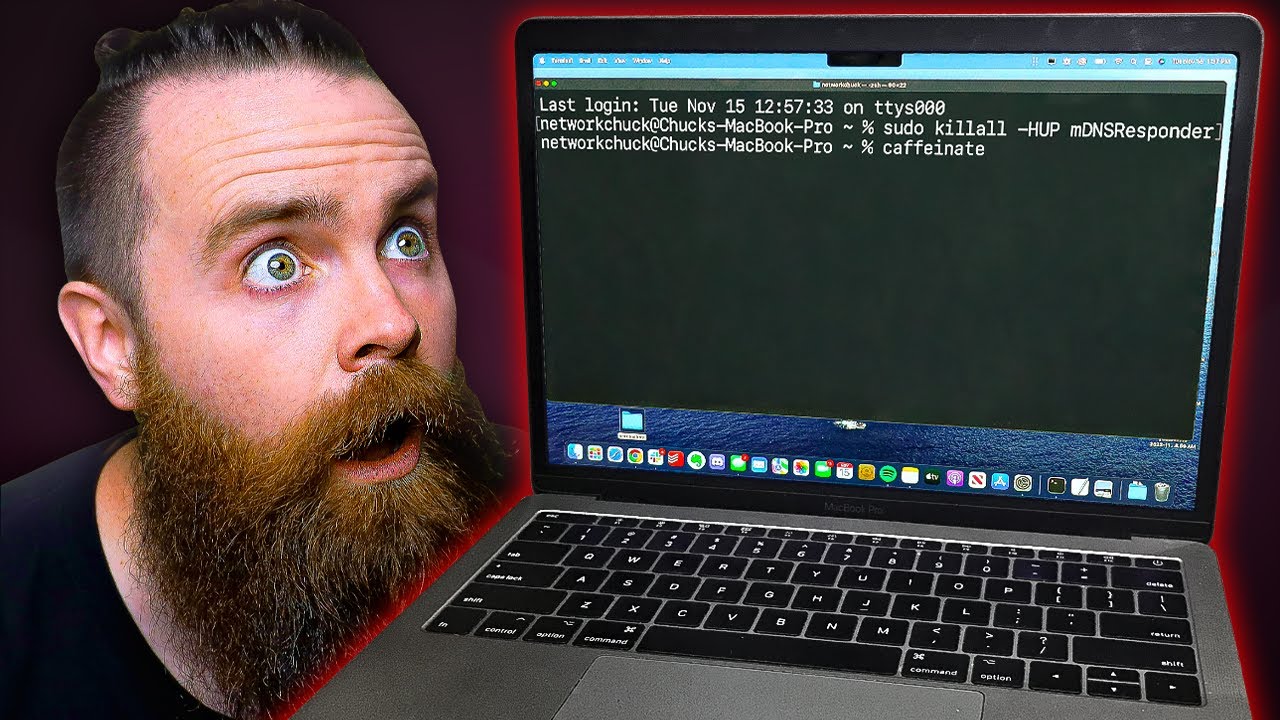
Mac’s command-line interface gives you direct access to the Unix foundation that powers macOS. Learning a few essential Terminal commands can help you manage files, perform tasks more efficiently, and unlock advanced features like a true Mac power user.
Over the years, the Mac’s graphical interface has transformed the way people work. However, the command line remains a valuable tool for users who want greater control, automation, and access to features that aren’t available through the standard macOS interface.
The Terminal app can also make everyday and repetitive tasks faster. You can combine multiple commands to perform more advanced operations, making the command line a flexible tool for both basic and complex workflows.
Learning a few essential CLI commands is an easy way to better understand how macOS works and discover new ways to complete tasks efficiently. Open Terminal and start exploring the useful commands below.
SEE: Download the PDF version of 20 Mac Terminal Commands Every User Should Know.
Accessing the Terminal App
Anyone using a Mac can access the command-line interface through the built-in Terminal app, which uses a UNIX-based shell. You can find it in Applications > Utilities.
To open the Utilities folder quickly, open Finder and press Command + Shift + U. From there, launch Terminal just like any other application. A window will appear with a command prompt and blinking cursor, ready for you to enter commands.
Your Mac offers much more than its graphical interface and features such as Control Center. Terminal gives you a way to look beneath the surface of macOS and interact directly with parts of the operating system.
SEE: Keep your Mac running smoothly with this macOS tune-up checklist from TechRepublic Premium.
To use Terminal, type a command and press Return to execute it. Terminal will display relevant results when available, although some commands may run without producing visible output.
Apple continues to maintain Terminal as part of macOS, including recent versions such as macOS Sonoma. The app provides direct access to the underlying UNIX command line, giving users greater flexibility and control over their systems. For power users and anyone interested in learning more about their Mac, Terminal remains one of the most useful built-in tools available.
Top Mac Terminal Commands
1. Change Directory
Command: cd
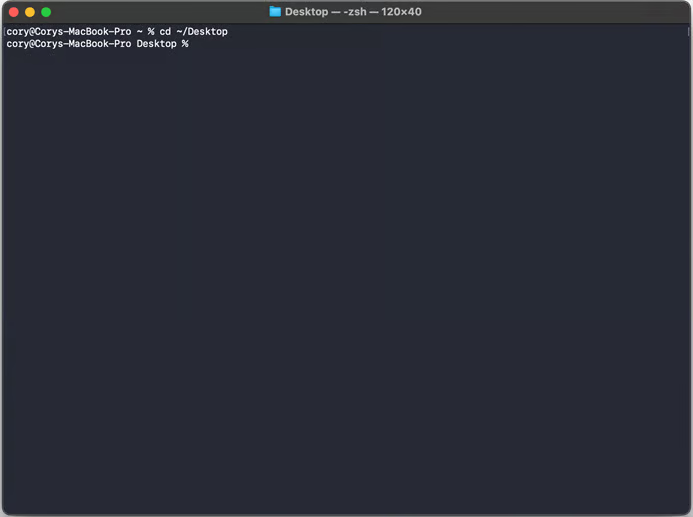
What it does: The cd command lets you move from your current directory to another directory in Terminal. This is essential when you need to access files, view the contents of a different folder, or run commands in a specific location.
The cd command is one of the most commonly used commands when working with the command-line interface. If you ever forget which directory you are currently in, type pwd and press Return to display the full path of your current location.
Example: cd "path/to/directory/" (Figure A)
Figure A
2. List Directory Contents
Command: ls
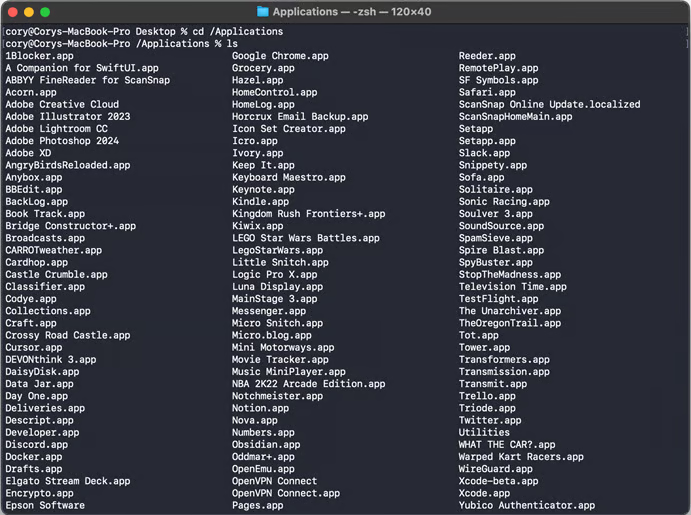
What it does: The ls command displays the files and folders within the current directory. After using the cd command to navigate to a specific location, you can use ls to see its contents.
For more detailed information about each file or folder, use the -l option:
ls -l
This provides additional details, such as file permissions, ownership information, and modification dates.
Example: ls "path/to/directory/" (Figure B)
Figure B
3. Open Files
Command: open
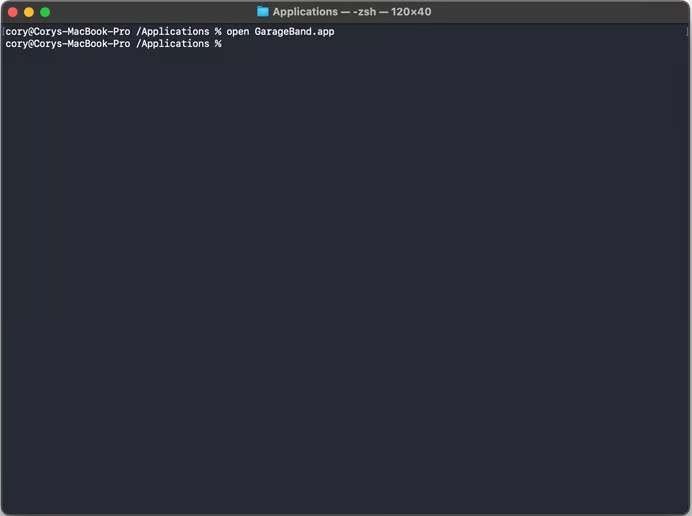
What it does: The open command lets you launch a file directly from Terminal using the appropriate application on your Mac. This is useful when you’re navigating through directories and come across a file you want to access.
Simply type open, add a space, and enter the filename. You don’t have to type the entire filename manually. Start entering the name and press Tab to automatically complete it when possible.
Example: open "filename" (Figure C)
Figure C
4. Copy a File to Another Directory
Command: cp
What it does: The cp command allows you to copy a file from one location to another or create a duplicate of an existing file with a different name.
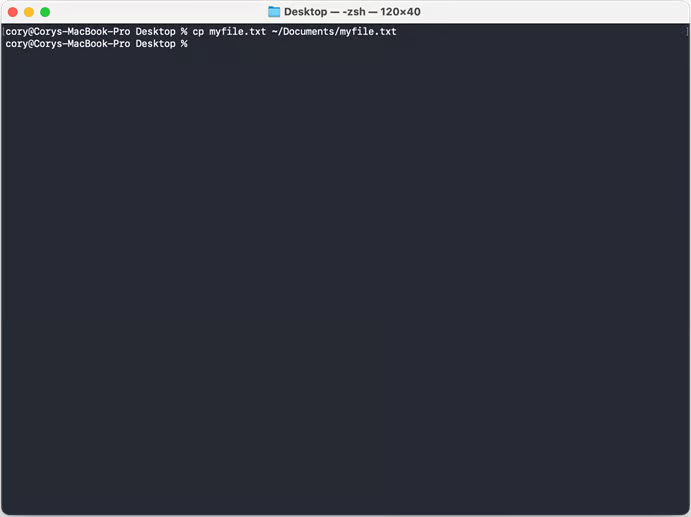
To use the command, enter the path and name of the original file first, followed by the destination path, filename, and extension. Once you press Return, Terminal will create the copy in the specified location. If the command completes successfully, Terminal will usually return to the prompt without displaying a confirmation message.
Example: cp “filename” “newfilename” (Figure D)
Figure D
5. Move a File
Command: mv
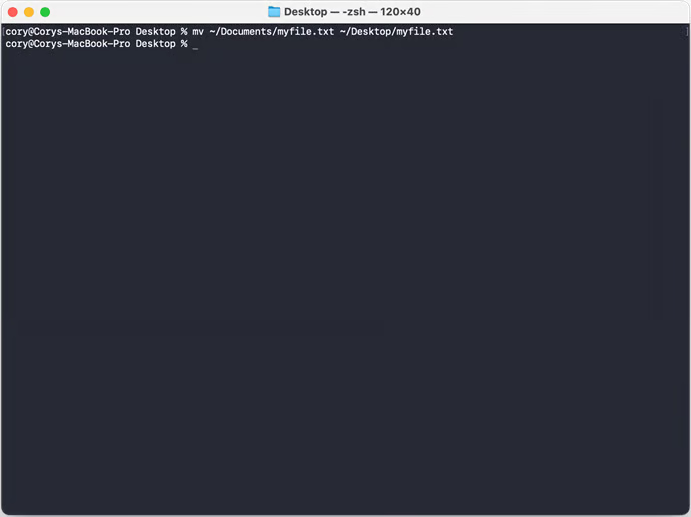
What it does: The mv command moves a file from one location to another without creating a duplicate. Its syntax is similar to the cp command, but instead of copying the file, mv removes it from its original location and places it in the destination you specify.
You can also use mv to rename a file by providing a new filename as the destination.
Example: mv "filename" "path/to/new/file/location" (Figure E)
Figure E
6. Create a Text File
Command: touch
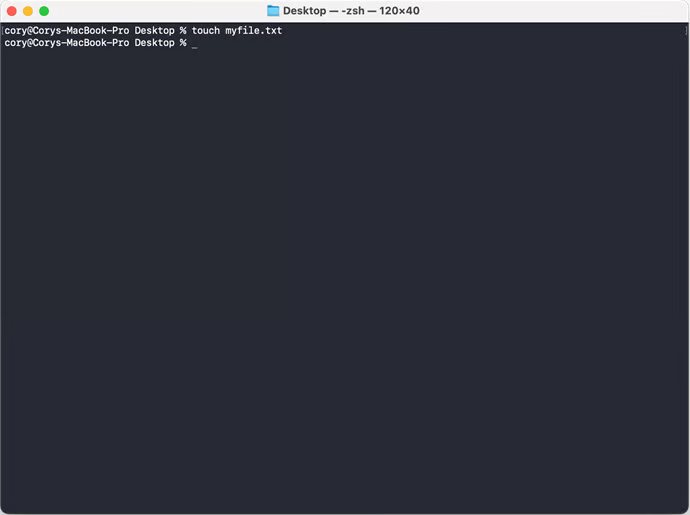
What it does: Creating a blank file directly from Finder isn’t always straightforward. The touch command provides a quick way to create a new, empty file from Terminal. You can use it to create files with different extensions, including .txt.
Once the file has been created, you can open it in a text editor using the open command followed by the filename.
Example: touch myfile.txt (Figure F)
Figure F
7. Create a Directory
Command: mkdir
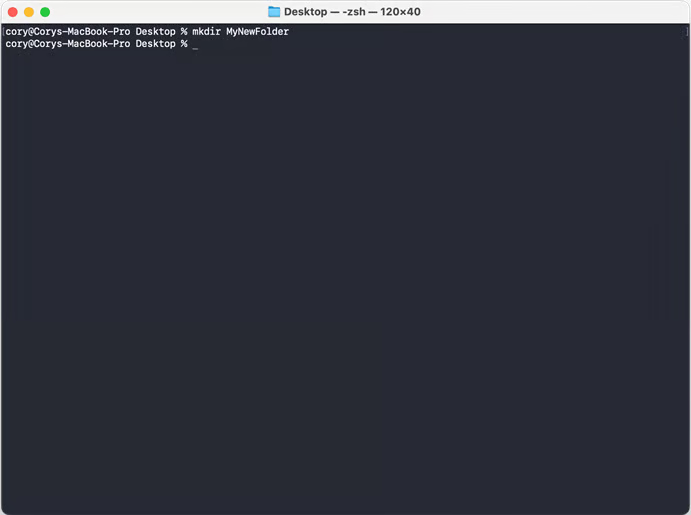
What it does: The mkdir command lets you create a new directory, or folder, directly from Terminal. It’s useful when you need to organize files or create a new location for storing data.
By default, the new directory is created in your current working location. You can also provide a full path to create the folder in a specific location.
Example: mkdir "path/to/new/directory" (Figure G)
Figure G
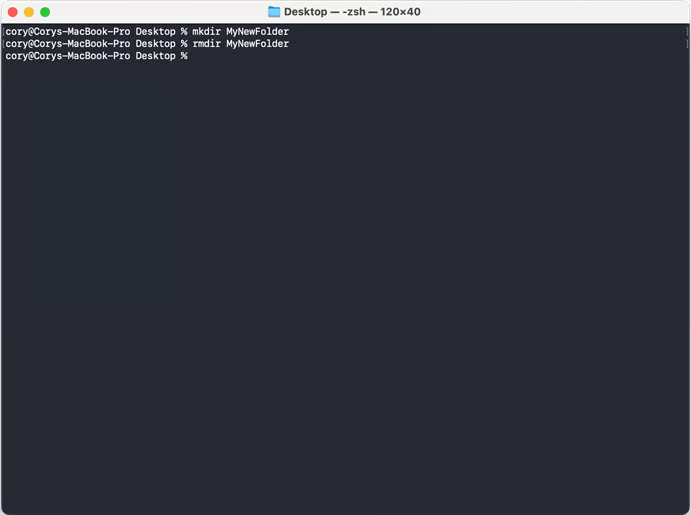
8. Remove an Empty Directory
Command: rmdir
What it does: The rmdir command lets you delete an empty directory directly from Terminal. If you created a folder you no longer need, enter rmdir followed by the directory path to remove it.
If you only need to change the folder’s name, you can use the mv command instead.
Example: rmdir "path/to/directory" (Figure H)
Figure H
9. Remove Nested Directories
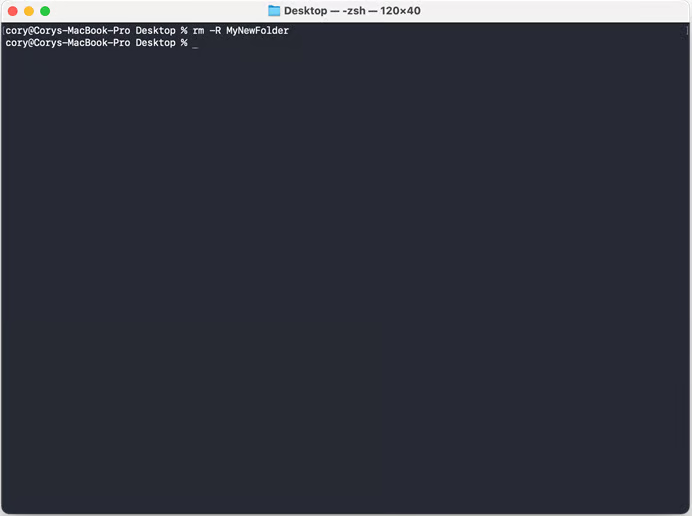
Command: rm -R
What it does: The rm -R command lets you remove a directory along with all of the files and subdirectories inside it. This is useful when you need to delete an entire directory structure from Terminal.
Use this command with caution because the deleted files are not moved to the Trash and generally cannot be restored through the normal Finder recovery process. Once executed, everything within the specified directory can be removed immediately.
Example: rm -R "/path/to/root/directory" (Figure I)
Figure I
10. Execute Commands with Superuser Privileges
Command: sudo
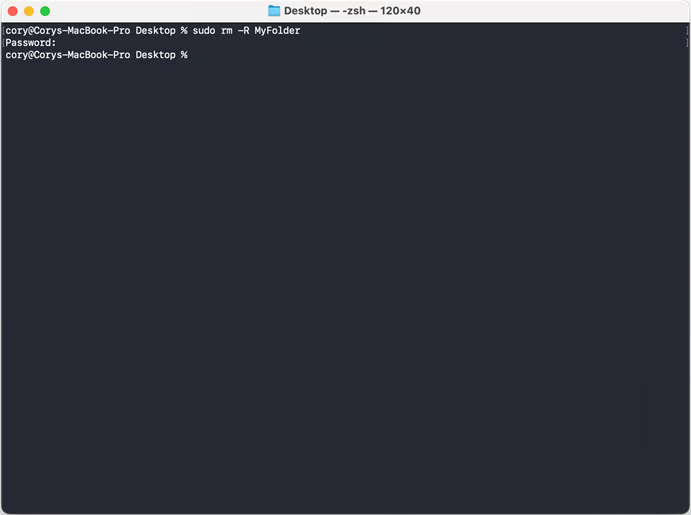
What it does: The sudo command allows you to run another command with elevated administrator privileges. Some system-level operations require these permissions, such as modifying or deleting files that your current user account doesn’t have permission to access.
When you use sudo, Terminal may prompt you to enter your Mac user account password. For security, macOS does not display the characters you type—or even show placeholder symbols—while you enter the password. Simply type your password and press Return to continue.
Because sudo provides elevated access, use it carefully and only with commands you understand. Never enter your password into a prompt or field that you did not intentionally trigger.
Example: sudo "command" (Figure J)
Figure J
11. List Actively Running Computer Processes
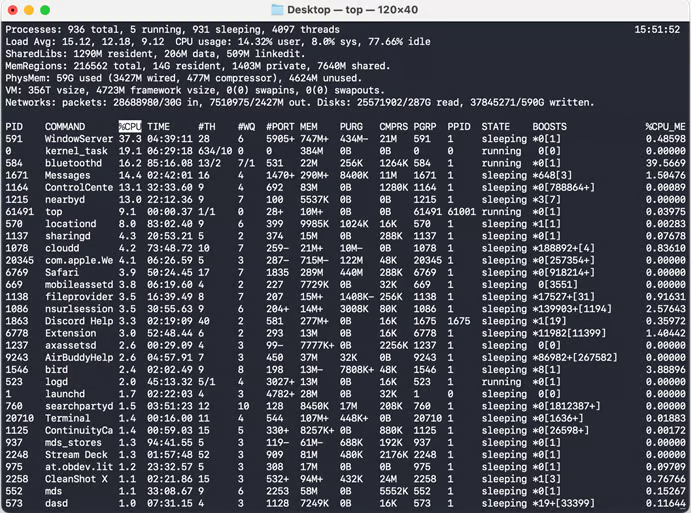
Command: top
What it does: The top command displays a live overview of your Mac’s currently running processes directly in Terminal. It provides system information such as CPU usage, memory consumption, and other resource statistics.
You’ll also see a continuously updated list of processes and applications that are using system resources, along with details such as their process IDs, CPU and memory usage, and current status. This makes top a useful alternative when you want to monitor system activity without opening Activity Monitor.
The command continues running and refreshing the information until you stop it. Press Control + C to end the process and return to the Terminal prompt.
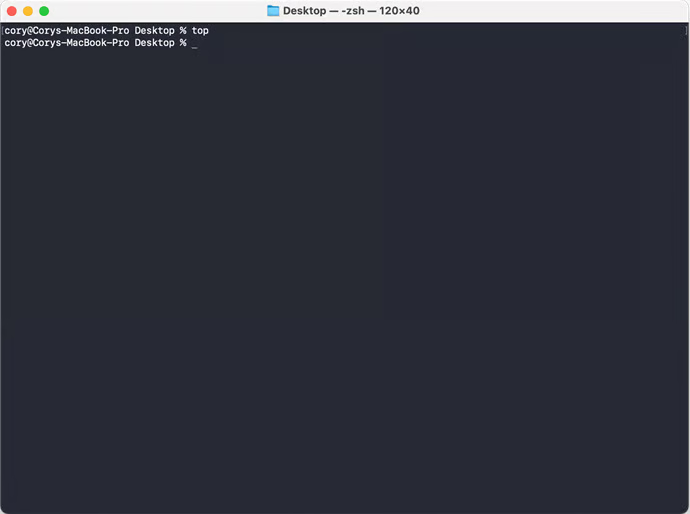
Example: top (Figure K)
Figure K
12. Quit a Sub-Screen and Return to Terminal
Command: q
What it does: Some Terminal commands open an interactive screen that continues running until you manually exit it. Pressing the Q key allows you to quit that screen and return to the regular Terminal prompt.
Depending on the command you’re using, you can also press Control + C to stop the running process and return to the command line.
Example: q (Figure L)
Figure L
13. Clear the Terminal Screen
Command: clear
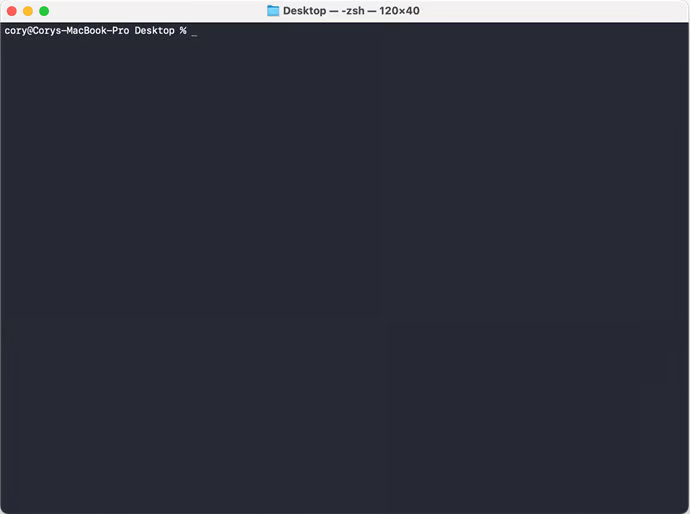
What it does: Running multiple commands can quickly fill the Terminal window with text and previous output. The clear command removes the visible content from the screen, giving you a clean workspace without closing the Terminal session.
If you prefer a keyboard shortcut, you can also press Command + K to clear the Terminal window.
Example: clear (Figure M)
Figure M
14. Copy the Contents of a Folder to a New Folder
Command: ditto
What it does: The ditto command allows you to copy the contents of one folder to another location. It’s especially useful when you want to create a new project based on an existing one or transfer an entire folder to an external drive.
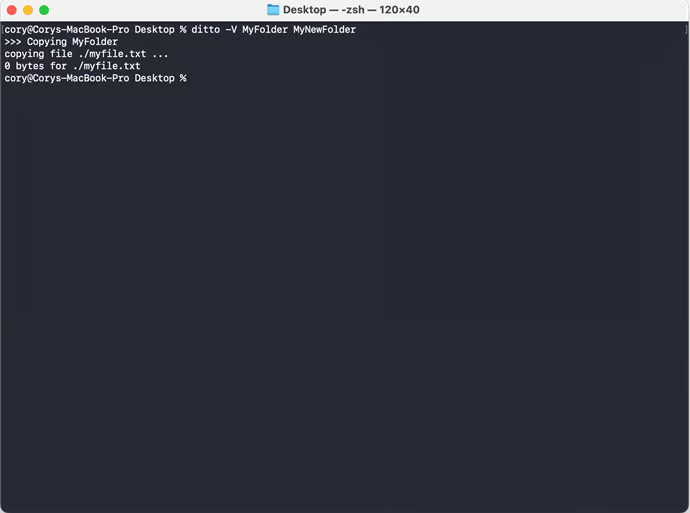
You can add the -V option to display detailed, or verbose, information about each file as it is copied. This makes it easier to monitor the copying process and verify what is being transferred.
Example: ditto -V MyFolder MyNewFolder (Figure N)
Figure N
15. Get a One-Line Description of a Command
Command: whatis
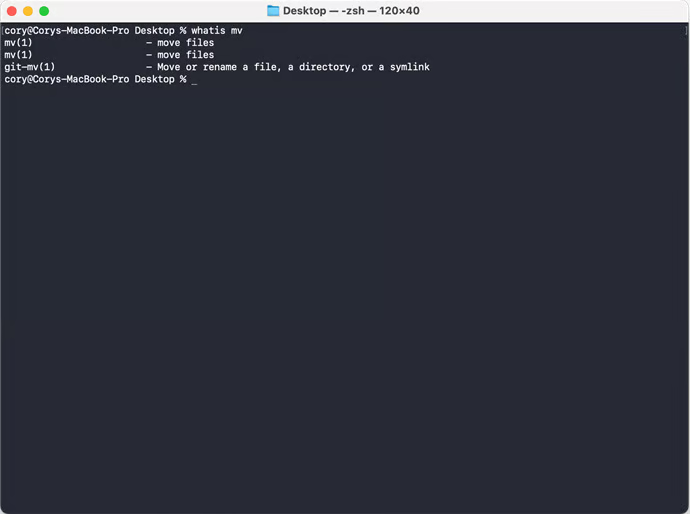
What it does: The whatis command provides a brief, one-line description of a specific Terminal command. It’s useful when you want to quickly understand what a command does without opening its full manual page.
Example: whatis "command" (Figure O)
Figure O
16. Show the Manual Page for a Command
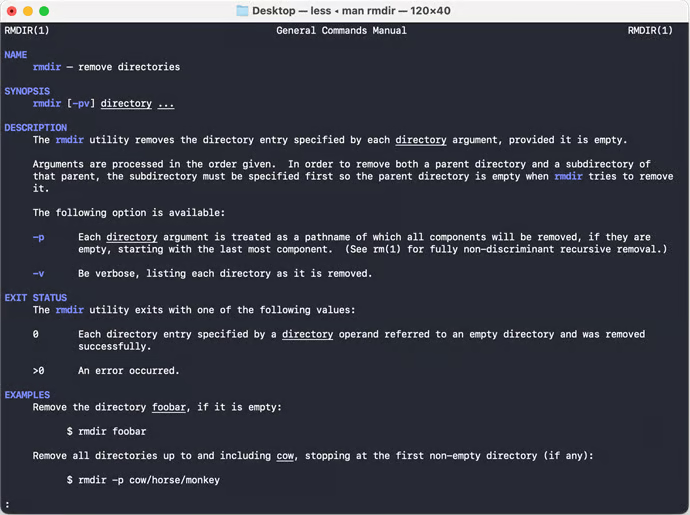
Command: man
What it does: The man command opens the manual page for a Terminal command, providing detailed information about how it works, available options, arguments, and usage. It’s a helpful way to learn more about a command without leaving Terminal.
While whatis gives you a quick, one-line description, man provides much more comprehensive documentation for the selected command.
Example: man "command" (Figure P)
Figure P
17. End the Current Terminal Session
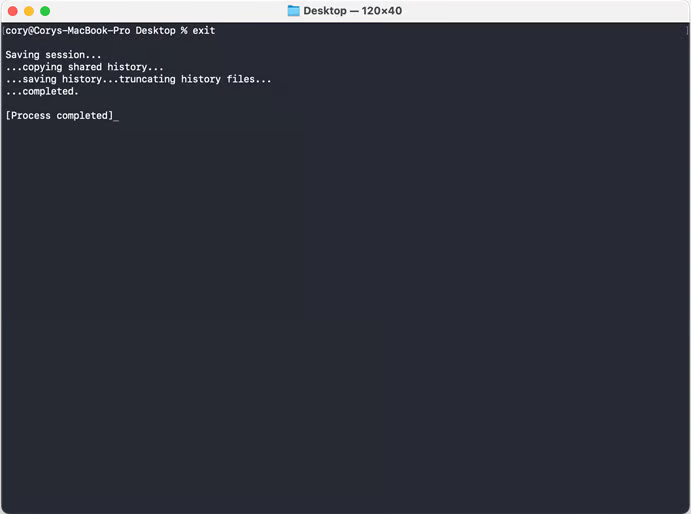
Command: exit
What it does: The exit command ends the current Terminal shell session. Although you can normally close the Terminal window, exit is especially useful when you’re connected to a remote computer through SSH.
Using exit will terminate the remote shell session and return you to your local Terminal, allowing you to safely disconnect before closing the window.
Example: exit (Figure Q)
Figure Q
18. Run Shortcuts from Terminal
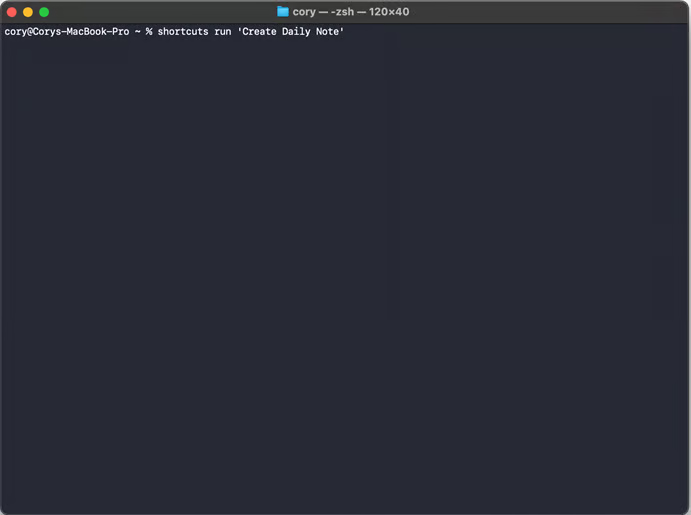
Command: shortcuts run
What it does: The shortcuts run command lets you launch an Apple Shortcut directly from Terminal without opening the Shortcuts app manually. This can be useful when you frequently run the same workflow and want a quicker way to start it.
Open Terminal, enter the command followed by the exact name of the Shortcut, and press Return. macOS will immediately execute the selected workflow.
Example: shortcuts run "My Shortcut" (Figure R)
Figure R
19. Start a Time Machine Backup
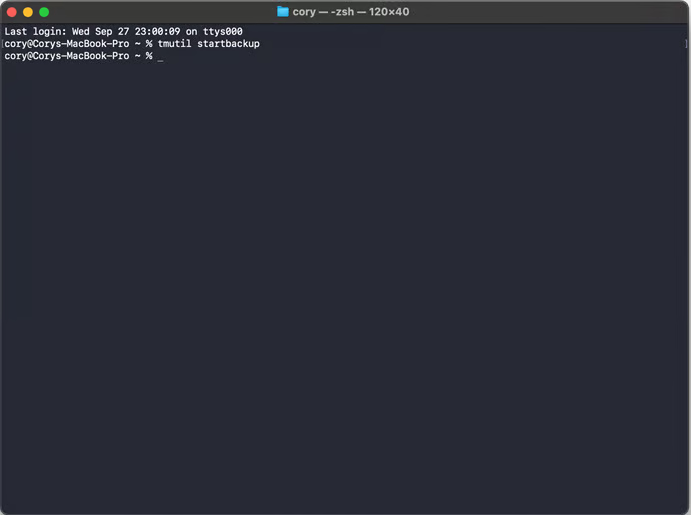
Command: tmutil startbackup
What it does: If you use Time Machine to back up your Mac, the tmutil startbackup command provides a quick way to start a backup directly from Terminal. This can save you from navigating through System Settings to manually start the process.
Simply enter the command in Terminal and press Return. macOS will initiate a Time Machine backup using your configured backup destination.
Example: tmutil startbackup (Figure S)
Figure S
20. Force Quit an App
Command: killall AppName
What it does: The killall command lets you quickly terminate a running application directly from Terminal. It can be useful when an app becomes unresponsive and you need to close it without opening the Force Quit Applications window.
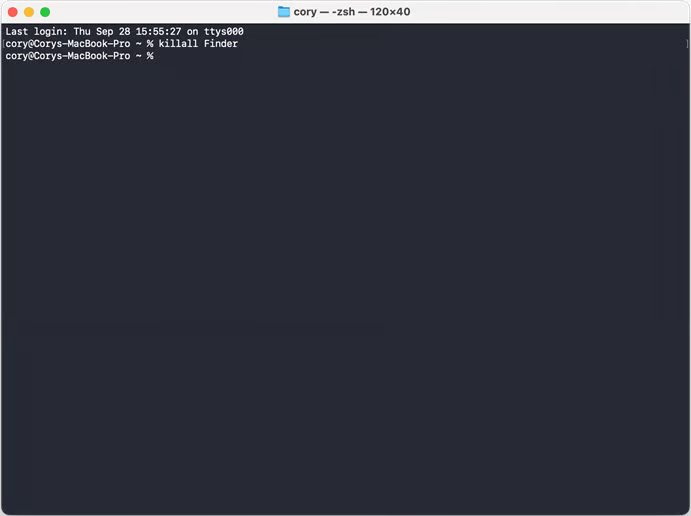
To use it, type killall, followed by a space and the name of the application you want to close. For example, running killall Finder will terminate Finder, which macOS can then relaunch. This can sometimes resolve temporary Finder freezes or other issues.
Example: killall Finder (Figure T)
Figure T
Take Control of Your Mac System
Knowing how to use the command-line interface on your Mac can be valuable in a variety of situations:
- An application may stop responding and need to be restarted.
- You may want to access advanced macOS capabilities that aren’t available through the graphical interface.
- If you manage multiple Macs, you can use SSH and Terminal to connect to and control those systems remotely.
- Repetitive tasks can often be completed more quickly by running commands directly.
Whatever your needs, Terminal gives you access to the UNIX-based foundation of macOS and provides greater control over the system. It can help you work more efficiently, troubleshoot problems, automate tasks, and access functions that are less visible through the standard Mac interface.
Learning essential Terminal commands is a great first step toward becoming a more confident and capable Mac power user.
Frequently Asked Questions
What is Terminal on a Mac?
Terminal is a built-in macOS application that provides access to the command-line interface. It lets you interact with your Mac using text commands instead of the graphical interface.
Is Terminal safe to use on a Mac?
Yes, Terminal is safe when you use commands you understand. However, commands such as sudo and rm -R can make significant system changes, so they should be used carefully.
How do I open Terminal on a Mac?
Open Finder > Applications > Utilities > Terminal. You can also use Spotlight by pressing Command + Space, typing “Terminal,” and pressing Return.
What is the most useful Mac Terminal command?
There isn’t one single best command. Commonly useful commands include cd for changing directories, ls for viewing files, open for launching files, and cp or mv for managing files.
How can I find my current directory in Terminal?
Use the pwd command and press Return. Terminal will display the full path of your current working directory.
Can Terminal force quit an application?
Yes. The killall command can terminate a running application. For example, killall Finder will close Finder and allow macOS to relaunch it.
Can I use Terminal to start a Time Machine backup?
Yes. If Time Machine is configured on your Mac, you can use tmutil startbackup to initiate a backup from Terminal.
Can beginners use Mac Terminal commands?
Absolutely. Beginners can start with basic commands such as ls, cd, pwd, open, and clear. As you become more comfortable, you can gradually learn commands for automation, system management, and troubleshooting.
Conclusion
Mac Terminal provides a powerful way to interact with macOS beyond its graphical interface. From navigating folders and managing files to monitoring processes, running Shortcuts, starting Time Machine backups, and troubleshooting applications, these commands can make everyday tasks faster and more efficient.
You don’t need to be an advanced developer to benefit from Terminal. Start with a few basic commands, learn what each one does, and gradually build your skills. With regular practice and careful use, Terminal can become an essential tool for getting more control over your Mac and becoming a confident power user.
